The Amazon Firestick allows you to transform an ordinary television into an entertainment center. You just need the right apps and an internet connection for the device to be able to stream media from various platforms, access online movies, watch live television and any other web content.
In case you would like to view live TV services using internet service, understanding how to install IPTV on Firestick is crucial. The installation process usually requires preparation of the device, installation of an appropriate app and inputting the credentials offered by the service provider.
Here, we will walk you through the installation process, what to consider before installing any application and some tips for solving connectivity issues.
What Do You Need Before Setting Up IPTV on Firestick?
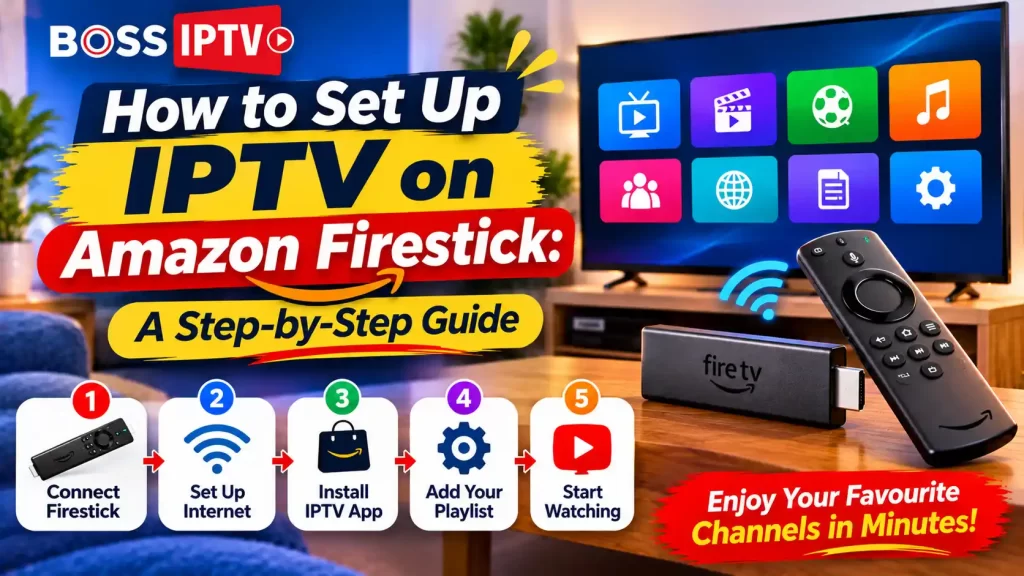
Set Up IPTV on Amazon Firestick in 6 Steps
Follow this simple setup journey, from connecting your device to testing playback in a compatible IPTV application.
Connect Your Firestick
Plug the Firestick into an available HDMI port, connect its power supply and select the correct TV input.
Check Device Settings
Open Firestick Settings, connect to Wi-Fi and check for available system updates.
Find an IPTV Player
Search the Amazon Appstore for a compatible IPTV player that supports your provider’s connection method.
Install the Application
Select the compatible app, download it and open it from your Firestick Apps section.
Enter Your Login Details
Follow the app instructions and enter the account credentials or playlist details supplied by your provider.
Test Content Playback
Allow the app to load, open available content and check whether playback works properly.
Prior to the installation, make sure that all the necessary items needed for installation are at hand.
What is needed includes an Amazon Firestick plugged into your TV, a stable internet connection and an applicable IPTV application. You will also need a valid subscription or account from a company that provides the application that you selected.
The login credentials and instructions that were given by the provider of your IPTV Service should be close by.
How to Set Up IPTV on Amazon Firestick
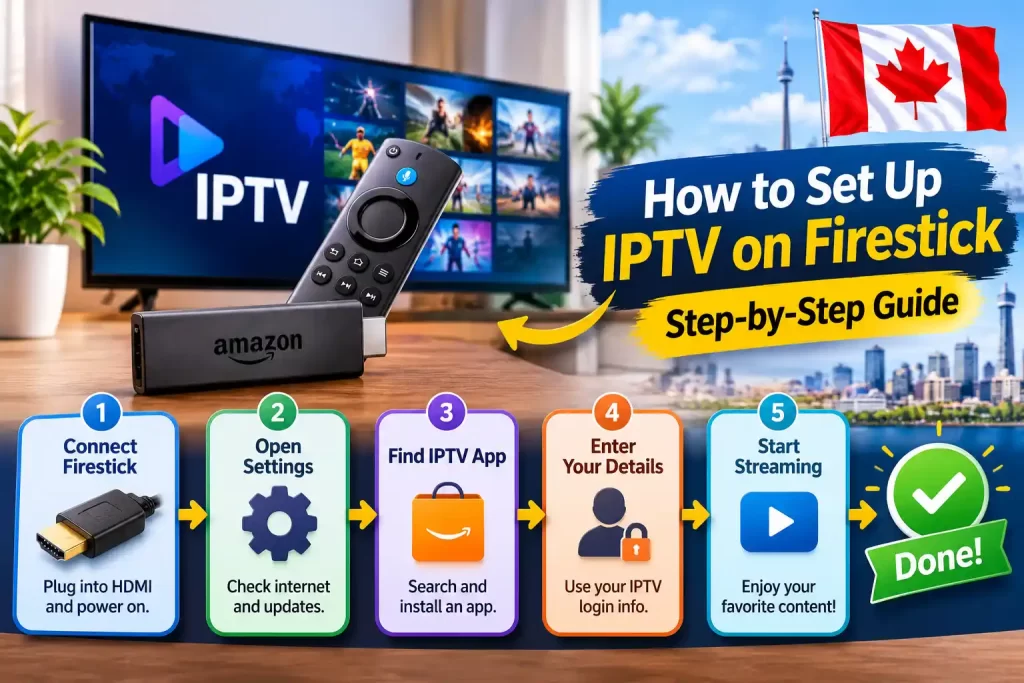
Follow these steps to prepare your Firestick and set up a compatible streaming application.
Step 1: Connect Your Firestick to the TV
The Amazon Fire Stick should be plugged into any of the available HDMI ports on your television set. Connect it to a power supply and switch on your television. Select the correct HDMI input using the remote control of your television set.
Step 2: Open the Firestick Settings
Open the Settings menu on the Firestick homepage. Make sure your device is connected to the Internet and all the updates have been installed. This will help prevent any compatibility issues while configuring the device.
Step 3: Find a Compatible IPTV Application
Launch Amazon Appstore and find an IPTV player that would suit the connecting method provided by your internet provider. Before downloading the application, you should read about its compatibility information and description. It is necessary to note that not all IPTV applications are compatible with each other.
Step 4: Install the Application
Pick the application which is compatible with the search results and then click on the download or install tab. After completion of the installation process, open the app by navigating to the Apps category on your Fire Stick device.
Step 5: Enter Your Account Details
Install the software in accordance with its installation guide. Your login information varies from your player and also from your service provider and may include your login information or URL of your playlist, among other things. Make sure you use only the data supplied to you through your IPTV service.
Step 6: Start Watching Available Content
After the setup process, let the application load the available content. Explore the categories in the channel section and select any of the programs to check whether it plays without glitches. Once the setup process is done, you can start enjoying the service through your Firestick.
How to Choose the Right IPTV Application for Firestick
App compatibility is yet another issue related to the installation process that needs attention. There are different IPTV players available with different interfaces and settings.
When selecting one, ensure that it works with the login credentials offered by your service provider. Other factors that you need to consider include the ease of navigation, playback controls, use of electronic programme guides and updates.
An easy-to-use interface will make it much easier for you to access various channels. Do not download any applications from unconfirmed sources.
What Should You Check Before Choosing an IPTV Subscription?
One thing you must do prior to buying IPTV is to check the terms of service. This means the terms of service should be right for your needs and your devices.
In the first place, you should check whether you have enough channels and genre types. Then, you should check the devices, subscription period, prices, and how you can renew them.
Also, you must check the customer support services of the IPTV provider in case of any problems with installing and logging in. Moreover, you may test the service using the trial period.
Common IPTV on Firestick Problems and Their Solutions
IPTV Application Not Opening
In case the app doesn’t open, kindly reboot your Firestick device and try again. Check whether there are any updates needed by the app. Or else, you may even consider clearing the cache of the app using your Firestick settings.
Login Details Not Working
The error message could be due to incorrect username or password. Ensure that you are using the correct login information from the service provider. You should be sure that you have a valid subscription to the service. You could contact the customer care team for further assistance.
Buffering During Playback
Buffering can occur due to poor Wi-Fi connectivity, or problems with the network. Reset your router, lower network traffic and determine if the issue occurs on any other internet application.
Channels Not Loading
In case certain channels fail to load, you should make sure that the problem is not related to the Internet connection and that the channels are part of your subscription. If the problem persists, it is advised to get in touch with your Internet service provider.
Why Consider Boss IPTV?
Looking for an IPTV Subscription for Your Firestick?
Explore Boss IPTV subscription information and check whether the available service options match your device, viewing preferences and account requirements.
Explore Content Options
Review the available channel categories and content selection before choosing a plan.
Check Device Compatibility
Confirm your Firestick model, supported player and connection requirements.
Compare Subscription Plans
Review plan duration, total price, renewal terms and permitted connections.
Review Support Information
Check the available support channels and setup assistance before subscribing.
Explore Boss IPTV Subscription Plans
Ready to compare your options? Visit the Boss IPTV subscription page to review the available plans and service details before making a decision.
If you need an IPTV service provider for your Firestick, then you should check out Boss IPTV to see what information is available.
When deciding on a package, you should ensure that the channel line-up suits you. You can also review the installation instructions and other details about the device compatibility and the application. Also, you can consider customer support availability when selecting a package.
Final Thoughts
Installing IPTV service through Firestick should not be difficult as long as you have a compatible application and an internet connection.
You may refer to the guide above to know how you can install the IPTV on Firestick successfully. You just have to make sure that you are doing everything right.
Frequently Asked Questions
Can I install IPTV on Amazon Firestick?
Yes, there are IPTV player applications that are compatible with Firestick. This would depend on your selected IPTV service provider and the supported connections.
Do I need an IPTV Subscription to watch live TV?
It is important to have an active subscription with the relevant application that offers the desired channels. You should review the plan and compatible applications before subscribing.
Is IPTV available on all Firestick models?
Compatibility is determined by the model of Firestick, operating system, and application requirements. It is important to verify if the device supports the application prior to installing it.
Why is my IPTV application buffering on Firestick?
A buffering issue might be caused by poor WiFi quality, slow network connection or performance problems. You should restart your router and test your internet connection before you call support.
Can I use the same IPTV account on multiple devices?
This will depend on the terms of service offered by your provider. Make sure that you check the number of concurrent connections allowed before accessing your account through several devices.
Is a separate IPTV box required for Firestick?
No extra IPTV box is usually needed when utilizing a corresponding app on Firestick. However, you should have the right account and access to the Internet.
Recent Comments