In this IPTV installation guide for USA devices, we show how to install IPTV in commonly used devices in America like Firestick, Android TV, Smart TVs, Phones & IPTV boxes. You will learn how to set up your player, activate your account and correct the most common problems. Everything is done quickly. By following the Boss IPTV installation guide, your service can become available in minutes. Even if you have no knowledge about streaming or switching firms, everything will be crystal clear. There is no need for any technical abilities.
Have these three items in place before you begin this IPTV installation guide.
Choose a device that can support IPTV applications. The following are examples of such devices: Amazon Firestick, Android TV, Smart TVs, Android smartphones and IPTV boxes. Ensure you identify the version of the software used in each.
A stable internet connection is crucial for online streaming. It is important that you have a minimum of 15 Mbps for HD streaming and a minimum of 25 Mbps for 4K streaming. Wired Ethernet cable connection is highly recommended.
An IPTV player app and login credentials for your IPTV provider will be required. This may include either an M3U link or Xtream Codes information. Ensure that you have both ready to go as you will need them throughout the entire process.
Select your device. Most people inquire about installing IPTV on Firestick initially, so we will start from there.
FireStick is the most widely used option and the set-up is quite fast.
Connect your device to one of the HDMI ports available on your television set. Also, ensure that the device is powered before signing in through your Amazon login details.
From the settings page, go to Network. You will be able to see whether your Firestick is connected. The most common error during setup usually relates to weak Wi-Fi signals, so place the router close to your Firestick.
On the home page, tap on the magnifying glass icon, then type in the name of the IPTV player you wish to use.
Click on the name of the IPTV player you chose. Click on "Download" or "Get".
Go to Settings > My Fire TV > Developer Options. Install apps from Unknown sources only if the player has requested you to do so and if those apps come from official sites only.
Start using the application by accepting the permissions requested. Select the choice for adding the playlist or signing into the app.
Input your M3U URL or Xtream codes as they were provided by your service provider. Make sure to check every single character before continuing.
Let channels load and then start watching a channel
Android TV comes with the Google Play Store pre-installed, thus making this one easy too.
Switch on your television and head over to the home screen, ensuring you are logged into your Google account.
Navigate to settings and check your storage and Wi-Fi connection. Remove any unused apps in case of low storage.
Head over to the apps menu and select the Google Play Store.
In the search box, type in the name of your IPTV player app. Select the correct app from the results shown.
Press the install button and wait for the installation to complete. Do not switch off your TV during this process.
Open the application and give it any permission that it requires. Choose Add Playlist, Xtream Codes or Login.
Enter your M3U URL or Xtream Codes carefully. Paste if possible from your remote since a single typo will deny you access.
Click Save then wait for your channels to load. In case you have many channels, loading will take some time.
Each TV manufacturer will have its app store and therefore the menu labels may be slightly different.
Connect your TV to your Wi-Fi at home. In case there is an Ethernet port in your TV, connect the TV by using a cable due to the stability of the wired connection.
Go to Settings and find the updates in your TV system, then install the updates. In such a case, your television will be able to accommodate various applications.
Tap on the Home button from the remote control and start the app store of your TV. This could be either Samsung Apps or LG Content Store.
Enter the name of the IPTV player which suits your particular TV type.
Click on the Install button and wait till it is fully downloaded. After that tap on the Open button.
You can either add a playlist or sign in. Some applications will display a code on your screen, which needs to be entered on their website.
Either add your M3U URL or Xtream Codes details or follow the website code procedure. Make sure every character is correct.
Tap the Save button and wait until the list of channels appears.
Your mobile can provide entertainment even outside your living room.
Verify that your phone or tablet is running on an updated Android OS and has not less than 500 MB of free space.
Access a reliable Wi-Fi connection. You can also use mobile internet as well. However, using mobile data for streaming will consume a large amount of it.
Locate Google Play Store icon on your home screen and launch it.
Press Install and wait for the installation to be completed, then press Open.
In case the application requests permission to notify and store, just confirm it because that will enable the application to function perfectly by saving playlists.
Press Add Playlist, Xtream Codes or Login, then add the URL or Xtream Codes as is.
Press Save, wait for the guide and all the channels to load up, do not exit the application while loading.
Choose any Live Channel and test the streaming. Turn your screen sideways to see that the video plays in full screen mode. If there is pausing in the video, reduce the quality settings.
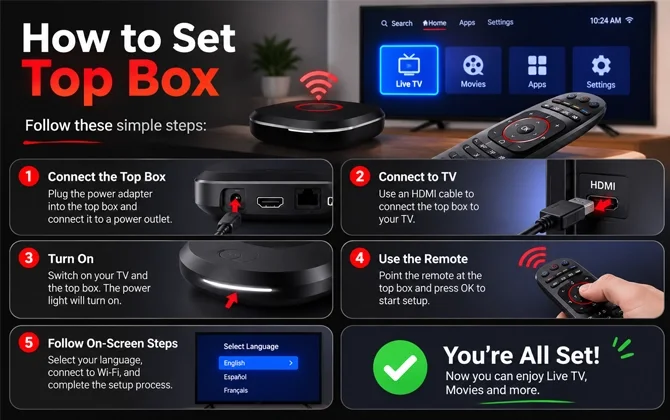
As an IPTV Box was designed to watch channels, installation takes just a couple of minutes.
Take out the box, remote, power cable and HDMI cable from the box. Put the box near the router.
Attach the HDMI cable to both the device and select the respective input channel of the TV.
Connect the power cable to the box. Wait for the main screen to come up.
In order to achieve the best results, use the Ethernet cable. If not, go to the Network tab and connect to your Wi-Fi network. Make sure that the connection is established.
Choose the IPTV or portal application among the main menu applications. Most IPTV boxes come with it.
Fill the portal address, M3U URL or Xtream codes details provided by your service provider. Don’t forget to double-check the spellings.
Save the settings. In case you’re prompted to do so, then you have to restart the app. Some of the boxes require a complete restart of the application.
Wait until the list of channels is loaded. It takes some time on the first start-up.
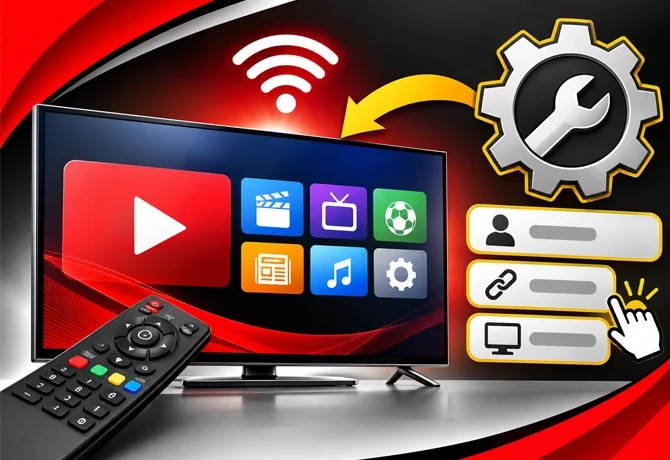
The settings for players are pretty similar on all devices, therefore this IPTV setup guide works for all mentioned platforms.
Select one of the popular and well-reviewed IPTV players from your device's app store that has features of M3U playlist support, Xtream Codes and electronic program guide. Ensure to check the user reviews of the chosen application and make sure that it supports the model of your device.
Start the application and select Add Playlist or Xtream Codes login according to your IPTV service. Insert the provided M3U URL or provide your username, password and server address. Be careful because even one tiny mistake can block your playlist.
After saving all your settings, just let the player download the list of channels – it may take a couple of minutes. Next, enter the URL of the EPG service, which you received from your provider.
Once your player is set, use the following IPTV installation guide for Boss services.
Go to the Boss IPTV site, select your preferred plan and purchase it. Activation data including username, password and M3U URL or server IP address is delivered via email. Preserve the email for future reference.
Launch your IPTV player and choose the Login option. Input username, password and server IP address you received via email. Paste them into respective fields. Click Save/Log in and wait till everything is loaded.
Select any random live channels like sports channel, news channel, or movie channel. Confirm that both audio and video are properly synchronized. In case your package has HD and 4K channels, play one of each. A smooth play signifies that your installation is complete.
Almost all problems have an easy explanation. If anything in this IPTV installation guide fails to work, consider trying the following solutions.
Delete any used storage space on your device and reboot. Ensure that the app is compatible with your device from the official store. In case of an error on the store, update your system software.
Reread your username, password and server name for any errors. Remove spaces when copying data. Make sure your account is valid. In case of failure, contact Boss IPTV.
Reboot your modem and computer. Go for a wired connection if you can. Ensure that all open programs are closed. Test a low-quality stream. Reload the playlist on the player.
Connect via cable when possible. For Wi-Fi, place your router in an open area and use the 5 GHz frequency range. Also, don't download anything during streaming.
Ensure that you have the most up-to-date version of the software on your device. Ensure that your IPTV player supports the software before installing it. Keep the app up to date as old versions will make it crash and have playback issues.
Install the apps from the official sources. Avoid using suspicious websites that may contain malware and illegal applications. Never reveal your password to anyone.
Select an appropriate device and install a trusted IPTV app from the official app store of that device. After this, enter your M3U or Xtream Codes links and check your live channel by loading it.
Amazon FireStick may be the easiest option. This device is inexpensive, user-friendly and will work with most IPTV applications. Installation of IPTV on Android TV will be easy too if you would like an in-built system.
Yes, you need a valid subscription to view channels. The application alone needs something called a playlist to work. Your subscription will provide either a login key or M3U data for your channel list.
Yes, almost all Smart TVs have apps for IPTV players available at their official stores. Simply follow the regular process for installing an IPTV player on a Smart TV and input your playlist information.
Possible reasons include incorrect login information, poor connectivity, expired subscription or incompatible application. Double-check your information, reset your router and device and get in touch with Boss IPTV customer service if problems persist.